
Common tasks
You can clone, delete and preview most objects in Magnet AI.
Clone tools
To clone a tool, click the three dot icon in the top right corner of the screen (next to Save button) and select Clone.
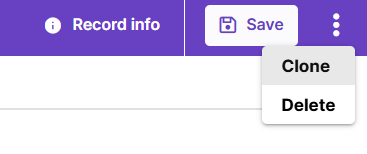
Cloning rather than directly editing is strongly recommended for default Prompt Templates due to their specific structure. Clone a Prompt Template, modify the cloned record and use it. This way, you can easily switch back to original tool configuration if necessary without losing important details.
In other cases, it's up to you whether to clone a tool or create a new variant. Variants typically share a lot in common, with some deviations, so that different setups can be tested and compared. Cloning is primarily used to take an existing tool configuration as a starting point and modify it to perform different tasks.
Delete tools
Deleting records in Magnet AI cannot be undone. So, make sure you do not delete any records that you might need later. To prevent accidental deletion, a warning is displayed to the user before deletion.
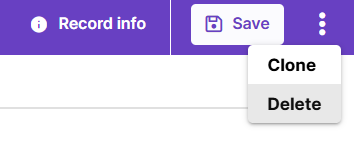
To delete a record, click the three-dot icon in the top right corner of the screen, next to the Save button, and select Delete. Then, confirm your action in the pop-up.
INFO
Some objects in Magnet AI have nested structure, and child records deleted on the UI do not actually get deleted before the Save button is hit on parent object.
Examples of such pattern include AI Apps (with AI Tabs under them) and Agents (with Topics and Actions). Deleting an AI Tab or a Topic/Action becomes irreversible once you hit the Save button on parent AI App or Agent.
Preview tools
You can preview most tools in Magnet AI in real time, without saving changes. Prompt Templates, RAG Tools, Retrieval Tools, Agents can be previewed in such way.
Previewing AI Apps is slightly different. You will need to click the Save button to see changes related to child AI Tabs. However, if you change the AI App theme or other UI settings, you can immediately preview these changes.
INFO
Agent Conversations created through Preview area are not sent to the Usage reports.
Preview in Knowledge Sources works as a semantic search - send your key word(s) or phrase and check the retrieved chunks and their scores to test how your Knowledge Source works.